
Create Your First Requirements Document
Time required: ~10 minutes
Goal: Generate a complete requirements package from one conversation
Overview
You’ll summon @srs-writer in chat. The orchestrator will plan and execute an automated flow: create a project folder, generate SRS.md, requirements.yaml, and prototype/, and surface quality suggestions. No commands to memorize—describe the project as you would to a teammate.
Step 1: Open the Chat panel
- macOS:
Cmd+Shift+I - Windows/Linux:
Ctrl+Shift+I
Or click the chat icon in the top-right of VS Code.

Step 2: Describe your project
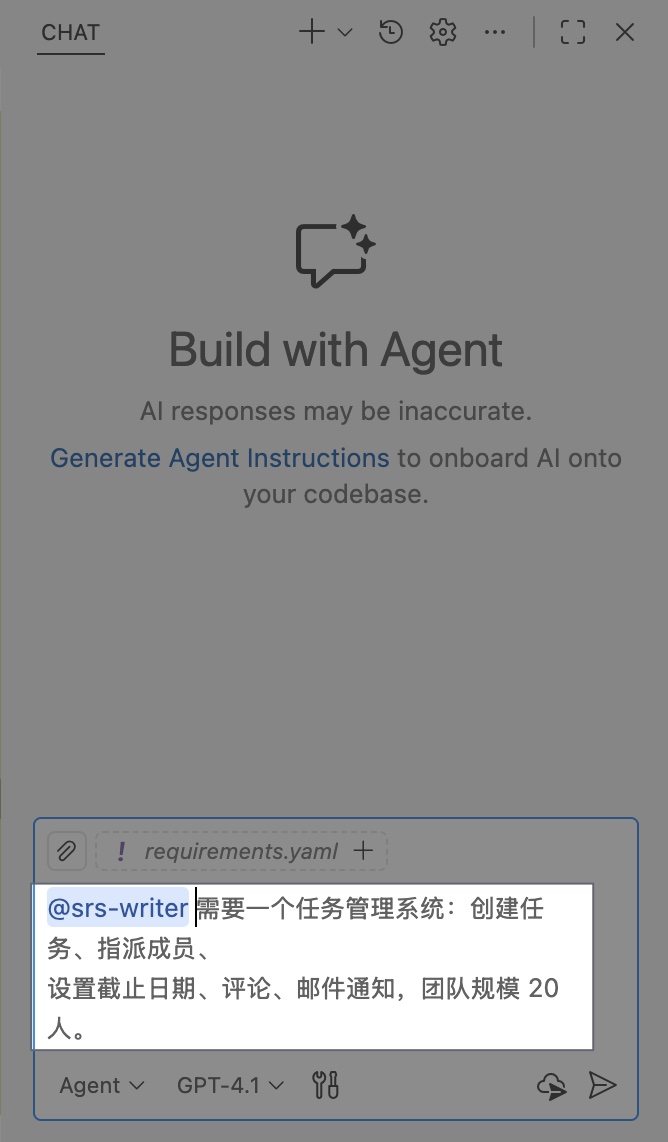
Start your message with @srs-writer.
Example (greenfield)
@srs-writer Need a task management system: create/assign tasks,
due dates, comments, email notifications, team size ~20.
Example (brownfield with a draft)
@srs-writer Use ./drafts/task-app.md to produce a formal SRS.
Keep existing use cases, add NFRs and interface specs.
💡 More context and constraints = fewer clarifying questions and better output.
Step 3: Watch the plan execute
The orchestrator will: detect scenario, build a plan, then call specialists.
Typical log snippets:
🎯 Orchestrator      -> plan execution
📁 project_initializer -> create project folder, base files, switch to wip branch
📝 summary_writer / fr_writer / nfr_writer ... -> write chapters to SRS.md
✅ srs_reviewer     -> quality review and fixes
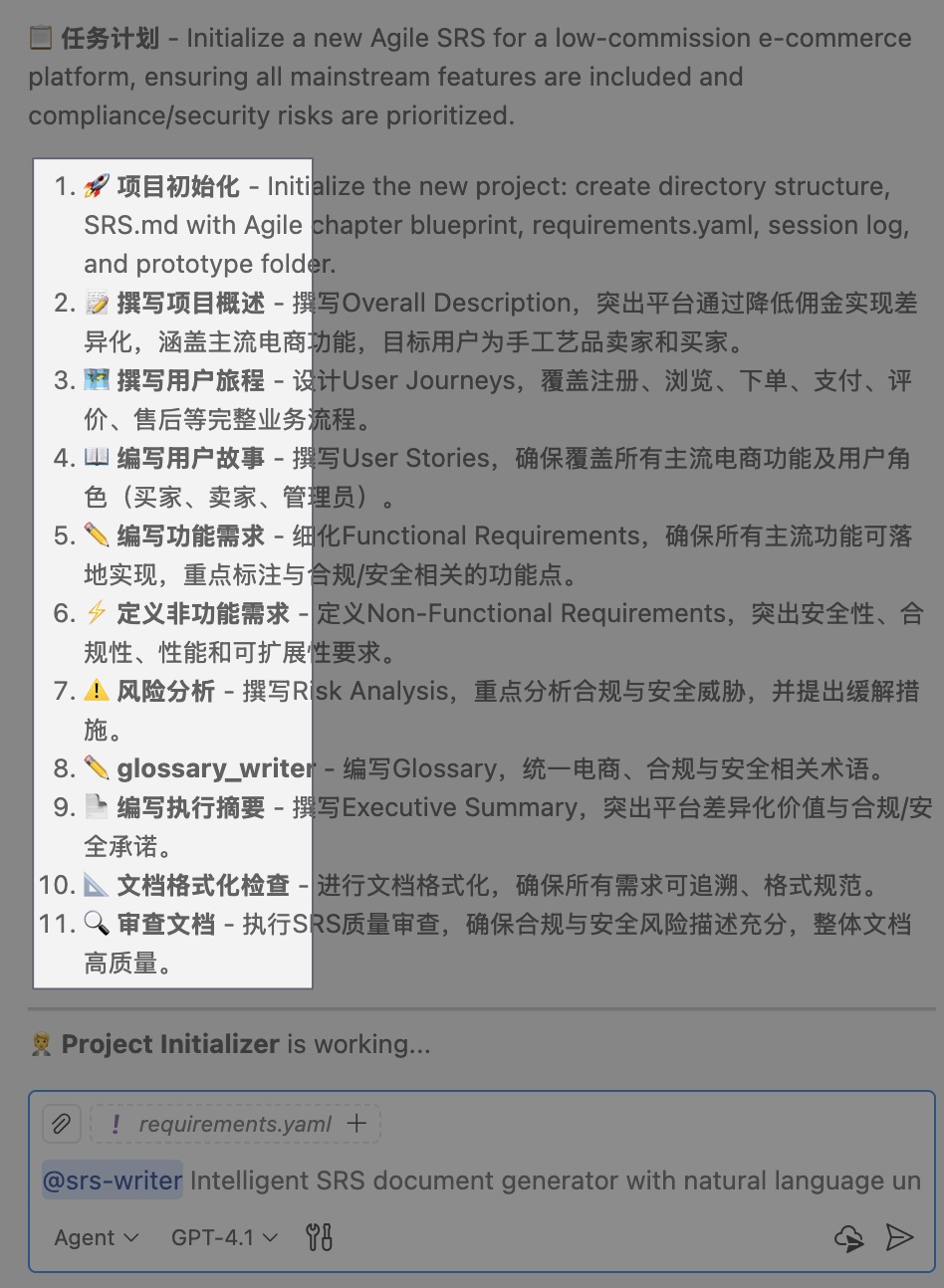
Timing guide: small projects 5–10 minutes; medium 10–20 minutes.
Step 4: Inspect generated files
A new project folder is created under your workspace root (name comes from the conversation):
<workspace>/<projectName>/
├── SRS.md                  # Requirements (Markdown)
├── requirements.yaml       # Structured entities with IDs (FR/NFR/IFR/DAR, etc.)
└── prototype/              # UI prototype scaffold
    ├── index.html
    ├── theme.css
    └── interactions.js

.session-log/               # At workspace root, session files for project switching
SRS.md
- Chapters from
.templates/, aligned to IEEE 830 - Content specialists cover: summary, overall description, journeys/use cases, FR, NFR, interfaces, data, risks/constraints, prototype overview, etc.
requirements.yaml
- Structured requirements with entity IDs (FR-001, NFR-001, UC-001, …)
- Supports traceability, automated checks, and iterative edits
prototype/
- Base HTML/CSS/JS skeleton to preview UI ideas
Quality feedback is provided in chat by
srs_reviewer(no separate file); when needed it will patch the docs directly or list fixes.
Iterate further
Add or change requirements
@srs-writer Add “task attachments”: max 20 MB, auto-delete after 30 days.
Clarify vague items
@srs-writer “Notification policy” is too vague—detail triggers, channels, and cadence.
Re-run quality checks
@srs-writer Run another quality review, list issues by severity, and fix them.
SRS Writer uses SID-based semantic edits to safely update both
SRS.mdandrequirements.yaml.
Common questions
-
Where are the files?
In the initialized workspace, under the newly created project folder..session-log/lives at the workspace root. -
Rename or delete a project?
Open SRS Writer: Control Panel → Project Management (rename updates the folder and session file; delete moves to trash and switches back to the main session). -
Git branch is off?
Use Sync Status Check or Force Sync Context from the Control Panel. Default working branch iswip.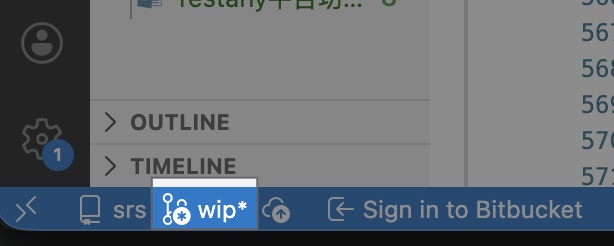
Tips for better results
- State the audience (client proposal vs. internal engineering) and key constraints (compliance, performance, integration boundaries).
- Paste drafts/notes when available; use relative paths like
./docs/draft.md. - Send one clear set of changes at a time to reduce ambiguity.