
Using the Control Panel
Scenario: Access core plugin features via a visual menu
Time: 1–2 minutes per action
What the Control Panel does
SRS Writer: Control Panel is the command center to:
- Create/initialize a workspace
- Switch or manage projects
- Check sync status
- Manage MCP tools
- Open plugin settings
How to open
Cmd+Shift+P/Ctrl+Shift+P→ run SRS Writer: Control Panel
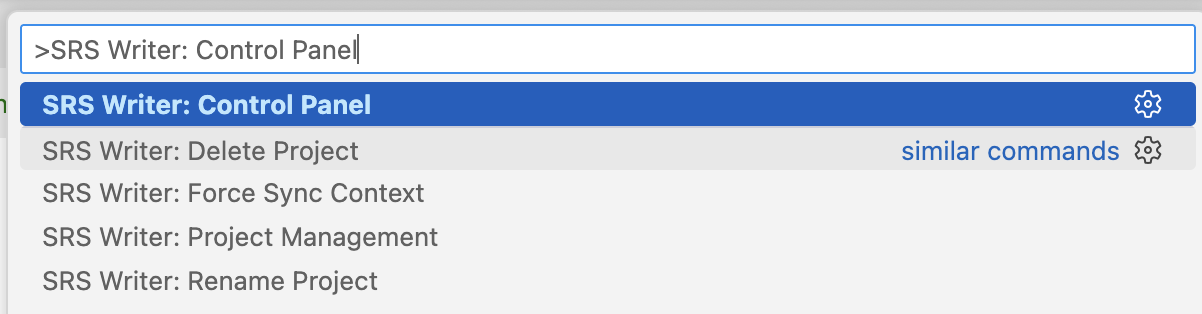
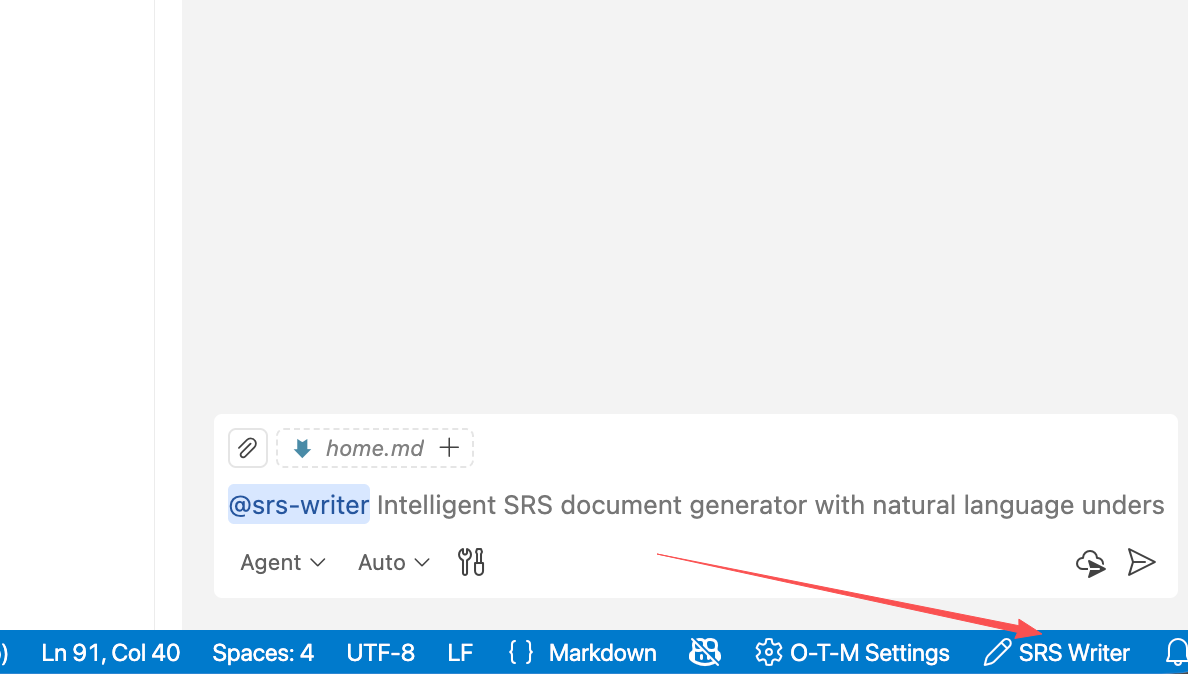
- (Optional) bind a keyboard shortcut; the status bar item SRS: ... also opens it when visible.
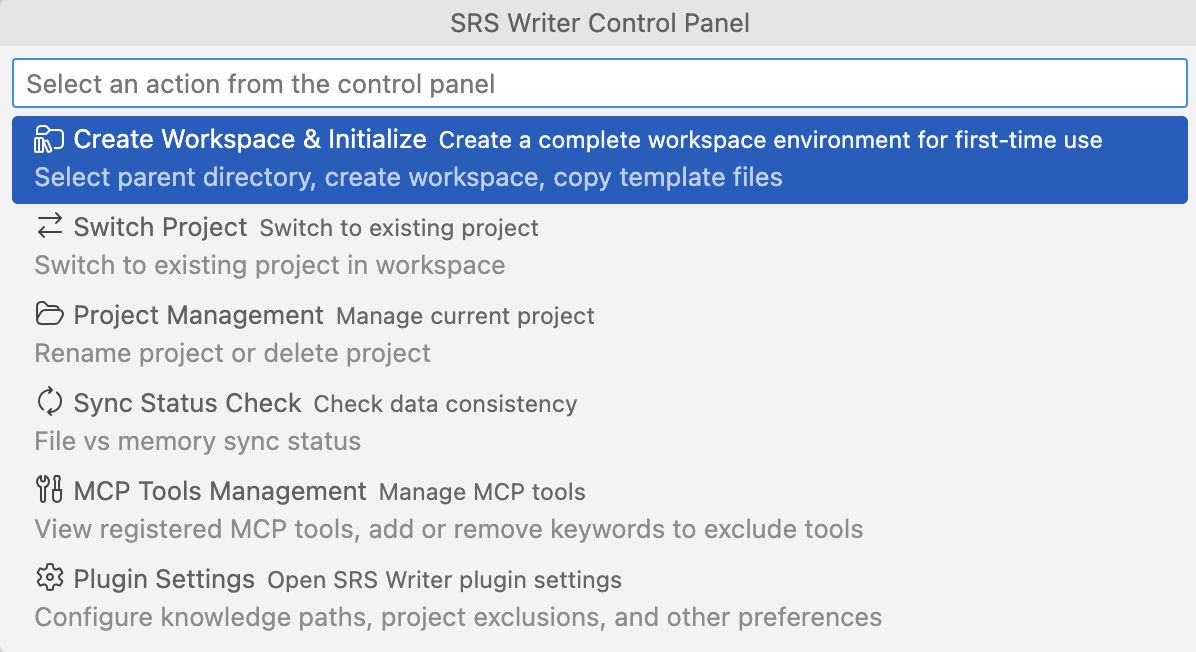
Options at a glance
📁 Create Workspace & Initialize   → Copy templates, init Git, create .session-log/
🔄 Switch Project                  → Load another project's session and context
📂 Project Management              → Rename / delete the current project
✓ Sync Status Check                → Check files, session, Git status
🔧 MCP Tools Management            → View / filter / reload MCP tools
⚙️ Plugin Settings                 → Open SRS Writer settings page
Details below.
📁 Create Workspace & Initialize
- Copies
.templates/into the new workspace - Generates
.vscode/settings.json(packaged with the extension) - Initializes Git:
mainbranch,.gitignore, initial commit, and awipworking branch - Creates
.session-log/and main session filesrs-writer-session_main.json - Opens the new workspace automatically
Choose a parent folder and workspace name (letters/numbers/-/_). Then start projects inside this workspace via chat.
🔄 Switch Project
- Lists project sessions from
.session-log/and validates directories - If a plan is running, prompts to stop safely before switching
- Saves current session, loads target session, clears chat context, ensures working on
wipbranch
Only shows projects inside the current workspace; invalid paths get guidance to fix.
📂 Project Management
Rename project
- Atomic updates: project name, project directory, session file path,
baseDir - Allows only letters/numbers/
-/_; prevents conflicts with existing dirs/sessions
Delete project
- Moves the current project's session file and project directory to trash (VS Code
useTrash) - Switches back to the main session (workspace root, Git default
main) - Requires a valid path inside the current workspace
✓ Sync Status Check
Checks the current project for:
- Session state (
baseDir, session file presence) - File state (e.g.,
SRS.md,requirements.yamlreadability) - Git branch info (on
wip, etc.)
If inconsistencies are found, it suggests Force Sync Context (command palette) or switching projects to reload.
🔧 MCP Tools Management
- View Tools Status: shows registered tool counts, sources (VS Code/MCP), current exclude keywords; can open user-level
mcp.json - Manage Exclude Keywords: add/remove keywords to filter unwanted MCP tools (case-insensitive)
- Reload Tools: unregister then re-register all tools using current exclude rules
⚙️ Plugin Settings
Opens VS Code settings filtered to SRS Writer. Key entries:
srs-writer.projectSwitching.excludeDirectories: directories to hide when choosing projectssrs-writer.mcp.excludeKeywords: keywords to exclude MCP toolssrs-writer.syntaxChecker.*: Markdown/YAML syntax checks (basic/standard/strict)srs-writer.rag.enterprise.*: enterprise RAG connection (optional)
Common workflows
First-time setup
- Control Panel → Create Workspace & Initialize
- Pick parent folder, enter workspace name
- When opened, start a project in chat:
@srs-writer ...
Switching projects
- Control Panel → Switch Project
- Pick the target project; confirm stopping current execution if prompted
- Wait for confirmation you’re on the
wipbranch
Fixing out-of-sync states
- Control Panel → Sync Status Check
- If issues exist, run Force Sync Context (command palette) or switch away and back