
Import from Git V2: Maintain Managed Import Records
1. What Managed Import means
Managed Import stores repository code in a Testany-managed Mirror.
In this mode:
- Testany imports the selected files into the Mirror
- execution reads scripts from the Mirror
- code freshness is controlled by Mirror lifecycle actions
This is different from Sync Link, where execution reads directly from Git.
2. Read the detail page
Open Import History and then open a record with the MANAGED IMPORT badge.
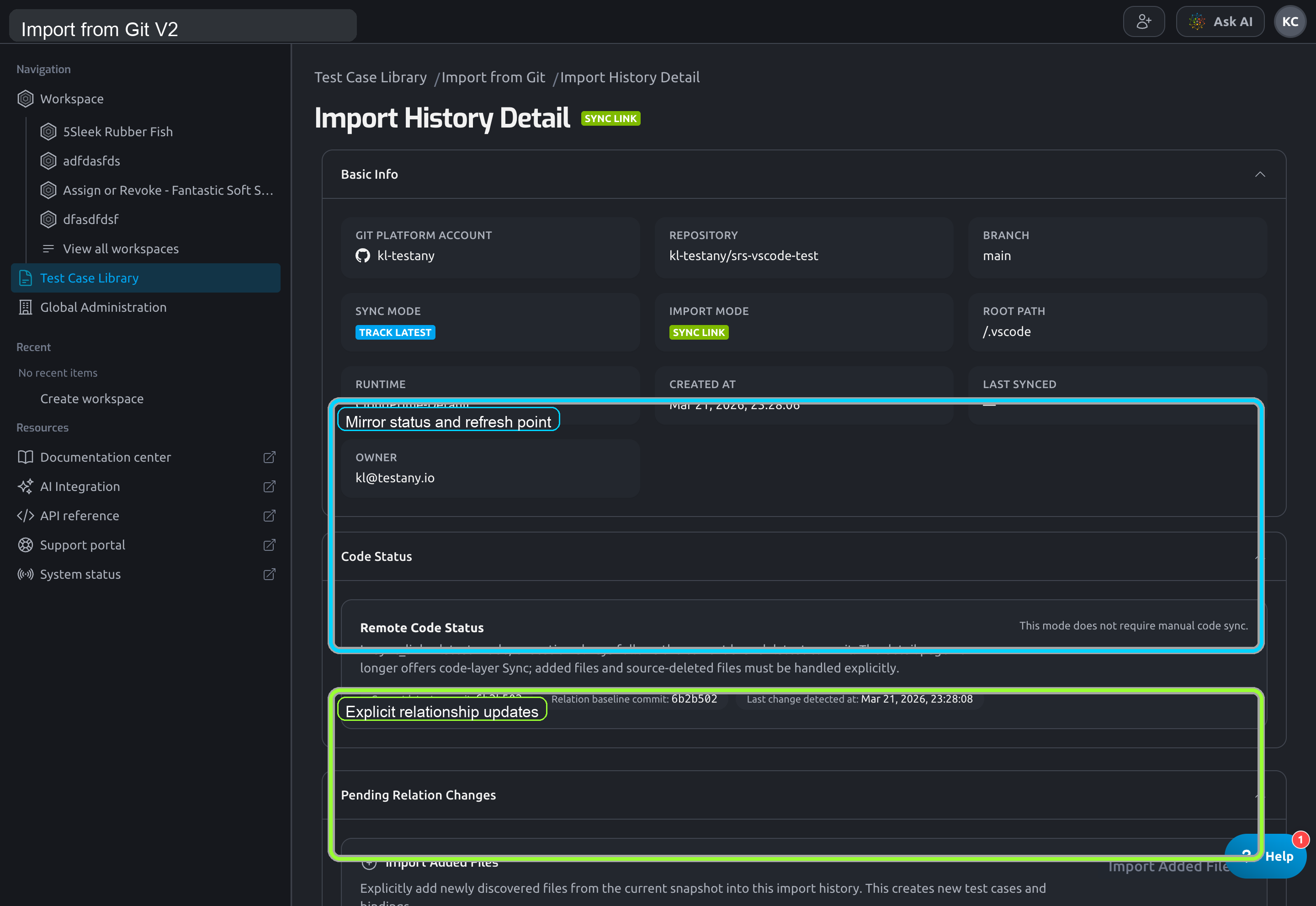
The page usually contains:
Basic InfoMirror Code StatusPending Relation ChangesAssociated FilesGitHub Webhook SyncRefresh HistoryDanger Zone
3. Understand Mirror Code Status
The Mirror Code Status section is the center of ongoing maintenance in this mode.
It tells you:
- current Mirror status
- current Mirror commit
- current remote latest commit
- last refresh time
Possible Mirror status values include:
Mirror HealthyMirror syncing...Mirror sync failedMirror initializing...Existing snapshot available, but refresh is not possible
4. Managed Import in Track Latest mode
In Managed Import + Track Latest, Testany does not chase the branch latest commit by itself.
You move the Mirror forward by:
- clicking
Sync - or letting GitHub Webhook advance the Mirror
If the Mirror is already current, the Sync button stays disabled.
4.1 What Sync does
In this mode, Sync only refreshes the Mirror to the target commit.
It does not automatically:
- create new Test Cases for newly discovered files
- mark deleted source files for you
Those are relationship-layer tasks and must still be handled separately.
5. Managed Import in Pinned Commit mode
In Managed Import + Pinned Commit, the record is locked to a specific commit.
The detail page lets you:
Switch CommitSwitch to Track Latest
Pinned mode does not support webhook sync. It also does not use the Sync button to advance code.
6. Handle relationship changes explicitly
Pending Relation Changes works the same way here as in Sync Link: relationship updates are explicit.
6.1 Import Added Files
Use Import Added Files when the current snapshot shows new supported files under the import root that are not yet part of the import history.
This creates:
- new Test Cases
- new bindings
6.2 Mark Source Deleted
Use Mark Source Deleted when a tracked file no longer exists in the source or Mirror snapshot.
This marks the binding as source_deleted.
It does not delete the Test Case automatically.
7. Configure GitHub Webhook Sync
In Managed Import + Track Latest, webhook can automatically advance the Mirror after GitHub push events.
Its role is different from Sync Link:
- Sync Link webhook triggers sync checks
- Managed Import webhook can advance the Mirror itself
But even here, the webhook still does not auto-handle:
- added files
- source-deleted files
Those still require explicit user action.
8. Review Refresh History
Use Refresh History to review past Mirror refresh operations.
This is useful when you need to understand:
- whether a refresh was submitted
- whether it succeeded or failed
- when the Mirror last moved forward
9. Delete a Managed Import history
In Danger Zone, deleting the import history:
- deletes all associated Test Cases
- immediately deletes the corresponding Mirror
Managed Import deletion has a wider blast radius than ordinary record cleanup because it also destroys the Mirror for that record.
Still have questions?
Our team is here to help. Get in touch and we'll get back to you as soon as possible.