
Manage Test Trigger Methods - Plan Trigger
Overview
Plan lets you schedule one or more test pipelines to run automatically at fixed times or recurring intervals.
Use Plan when you want predictable, unattended regression runs, such as:
- daily smoke checks
- weekly cross-environment checks
- monthly compliance regression suites
Key Concepts
| Concept | What it means |
|---|---|
| Plan Key | Unique key of a plan, format P-{workspace_key}-{4 uppercase hex} |
| Trigger ID | For Plan, Trigger ID is the plan key itself (for example, P-WKS-7351) |
| Trigger Instance ID | Sequence ID of one scheduled run under the same plan (for example, 00004) |
| Trigger Instance | One concrete plan execution event (for example, P-WKS-7351-00004) |
| Plan Owner | Owner of the plan resource (can edit/manage the plan with proper permission) |
Before You Start
Make sure you already have:
- a target workspace
- at least one runnable test pipeline
- permission to create/edit plans in that workspace
Create a Plan
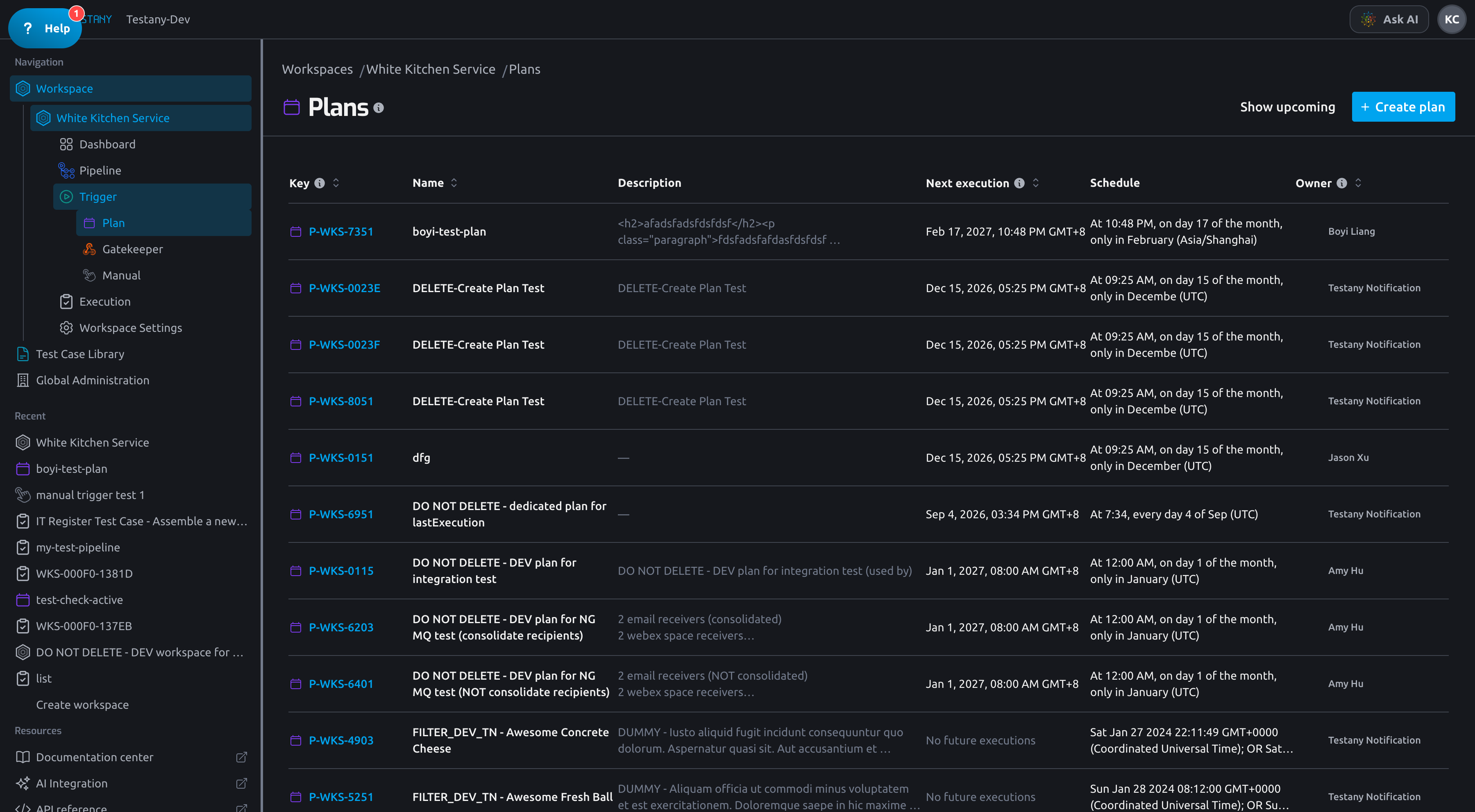
- Click Create plan.
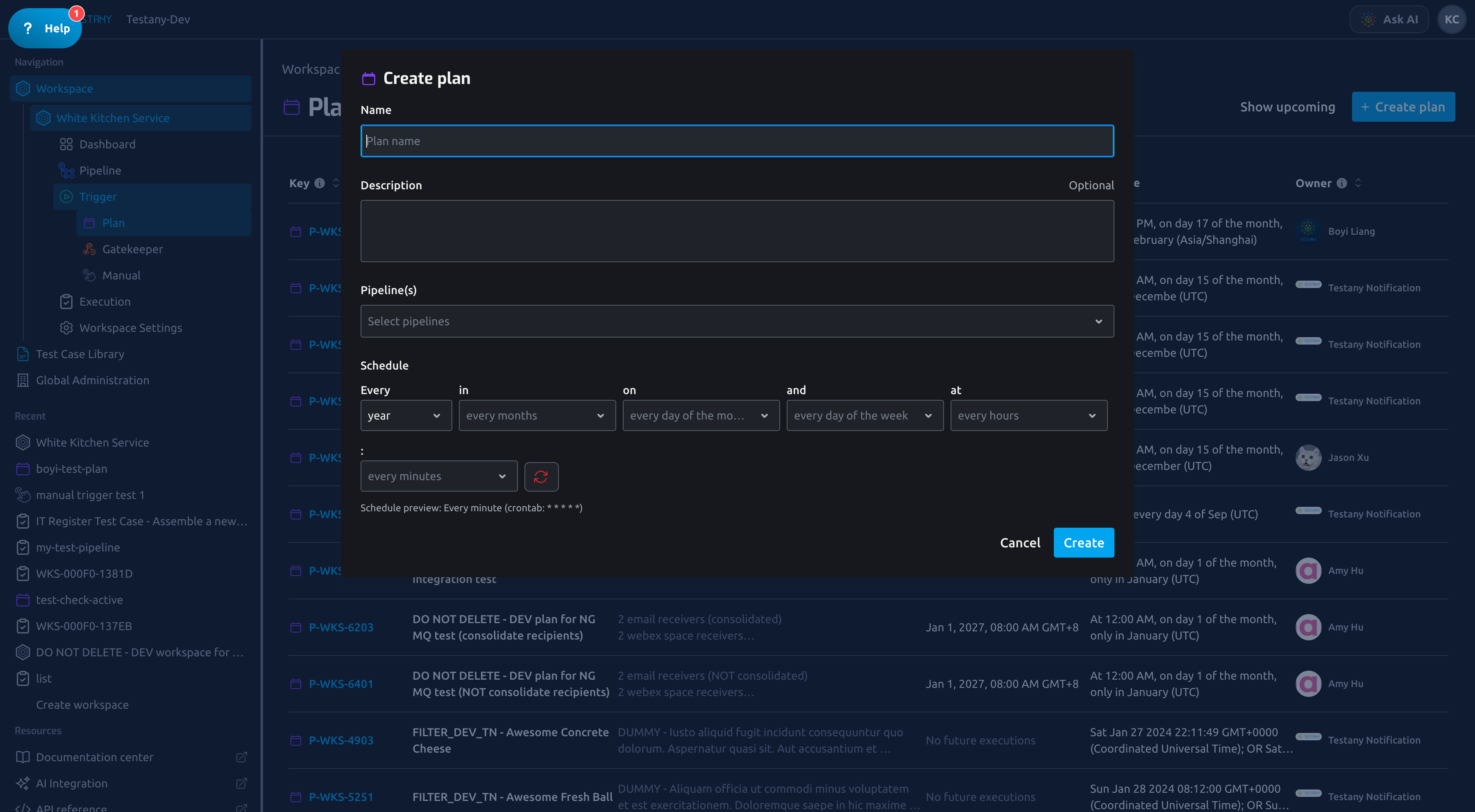
- Fill in:
- Name (required)
- Description (optional)
- Execution schedule (required)
- Linked pipelines (required)
- Click Create.
A Plan must always keep at least one linked pipeline. If no pipeline is linked, the plan cannot run.
Configure Schedule by Target Time
If you are not familiar with cron syntax, configure schedule from your target first:
- Start with a plain sentence:
I want this plan to run ... - Set recurrence in Every (
day,week,month,year). - Set day constraints:
- use on for day-of-month style targets (for example the 1st day)
- use and for weekday style targets (for example Mon-Fri)
- Set time using at and the minute selector.
- Confirm in Schedule preview:
- natural-language sentence matches your intent
- cron expression is generated correctly
- Save, then verify one real run in Execution history.
Ready-to-Use Examples
| Goal | Recommended setup |
|---|---|
| Run every day at 09:00 | Every=day; keep on/and as default full range; at=09; minute=00 |
| Run every Monday-Friday at 10:30 | Every=day; and=Mon-Fri; at=10; minute=30 |
| Run on day 1 of every month at 00:15 | Every=month; on=1; at=00; minute=15 |
Use a nearby time window for first-time verification (for example in the next 5-10 minutes), confirm one run in Execution history, then update to the final production schedule.
Manage a Plan
Open the plan detail page to maintain configuration.
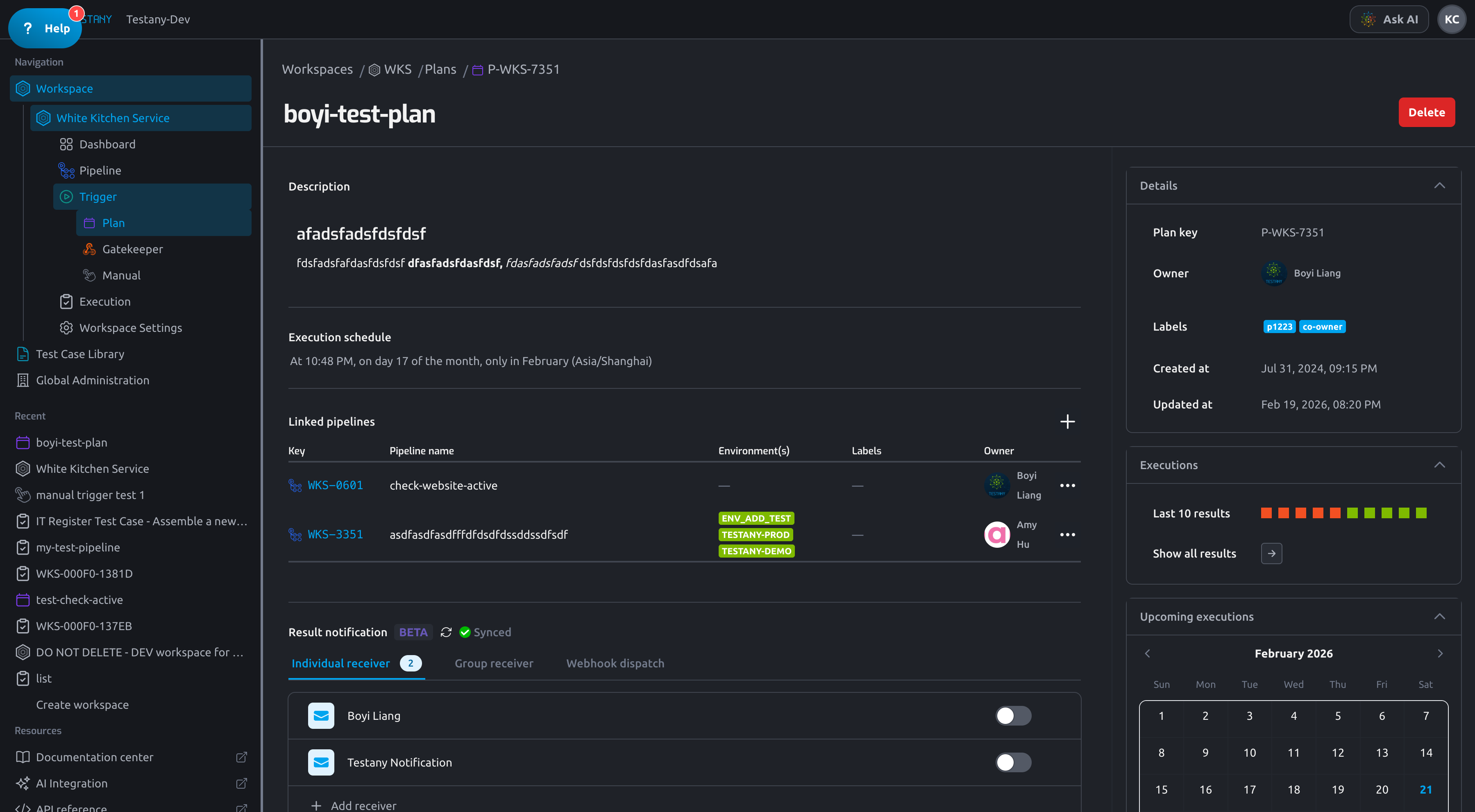
On this page you can:
- edit name, description, schedule, and linked pipelines
- view and update owner and labels
- review
created_atandupdated_at - configure result notifications (Individual receiver, Group receiver, Webhook dispatch)
- view upcoming executions with timezone conversion
Review Execution History
You can review execution history in two ways:
- Plan detail -> Executions: latest 10 trigger instances
- Show all results: jumps to Execution list with the plan filter applied (
triggered_by=<plan_key>)
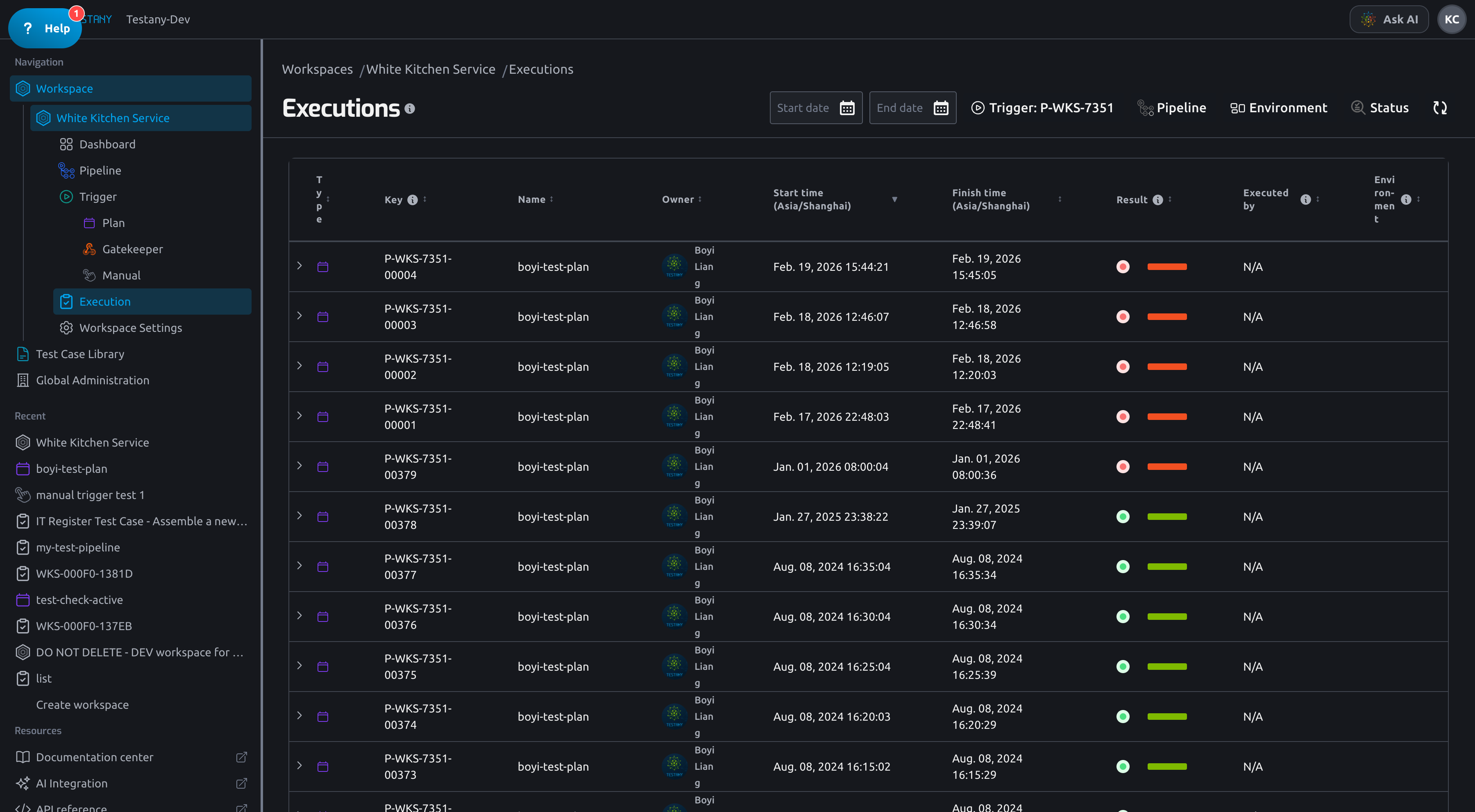
Each trigger instance can be expanded to inspect pipeline-level executions and statuses.
Related Guides
Still have questions?
Our team is here to help. Get in touch and we'll get back to you as soon as possible.