
Test Case Writing Guideline & Best Practice - Playwright
Overview
Playwright is an end-to-end testing framework for web applications. This document shows how to write a Playwright test case in Testany.
Testany's Playwright Executor simplifies the end-to-end Playwright testing lifecycle - from recorded scenarios to executing them across multiple browsers and reviewing results - all within a unified interface.
Using Playwright Executor
Method 1: Direct Upload
Prepare Test Cases
Similar to other testing, you need to prepare the following files:
- Test Code File: For example,
e2e-demo.spec.ts. - Config File:
playwright.config.ts - Project Dependency File:
package.json
Example test file (tests/e2e-demo.spec.ts):
TypeScriptimport { test, expect } from '@playwright/test'; test('homepage has correct title', async ({ page }) => { const baseUrl = process.env.BASE_URL || 'https://example.com'; await page.goto(baseUrl); await expect(page).toHaveTitle(/Example/); }); test('login with credentials', async ({ page }) => { const baseUrl = process.env.BASE_URL; const username = process.env.TEST_USERNAME; const password = process.env.TEST_PASSWORD; await page.goto(`${baseUrl}/login`); await page.fill('input[name="username"]', username); await page.fill('input[name="password"]', password); await page.click('button[type="submit"]'); await expect(page).toHaveURL(`${baseUrl}/dashboard`); });
Environment Variables Configuration
The environment variables used in your code (e.g., BASE_URL, TEST_USERNAME) must be configured in both places:
- Test Case detail page → Environment Variables section: Define the variable name and value
- Test script code: Use
process.env.VARIABLE_NAMEto read the value
See Managing Test Case for how to configure environment variables on the platform.
Example config file (playwright.config.ts):
TypeScriptimport { defineConfig } from '@playwright/test'; export default defineConfig({ testDir: './tests', timeout: 30000, use: { headless: true, screenshot: 'only-on-failure', video: 'retain-on-failure', }, reporter: [['html', { outputFolder: 'playwright-report' }]], });
Package Test Cases
Ensure this structure before zipping:
Plain Textplaywright/ ← ✅ Must include root directory ├── node_modules/ ← 🚫 Exclude ├── playwright-report/ ← 🚫 Exclude │ └── ... ├── test-results/ ← 🚫 Exclude │ └── ... ├── tests/ ← ✅ Must include directory of your test files │ └── e2e-demo.spec.js ← ✅ Must include your test files ├── playwright.config.js ← ✅ Must include Playwright config └── package.json ← ✅ Must include project dependencies
To prepare for uploading to the Testany platform, ensure that you package all essential files into a zip file, such as e2e-demo.zip.
Register on the Testany Platform
Once you have successfully prepared the zip file, you can register your test cases on the Testany platform. Refer to the "Managing Test Case" guide in our document for detailed steps on how to register test cases.
Ensure below meta are properly filled in test case detail:
- Executor:
Playwright - Trigger Path: Specify the path from the root directory of your test file (spaces are not permitted). For example:
playwright/tests/e2e-demo.spec.js - Config Path: Indicate the path from the root directory of
playwright.config.js. For instance:playwright/playwright.config.js
Method 2: Import from Git
Push Codes to Git
Ensure the same directory structure is in your repo.
Plain Textplaywright/ ← ✅ Must include root directory ├── node_modules/ ← 🚫 Optional ├── playwright-report/ ← 🚫 Optional │ └── ... ├── test-results/ ← 🚫 Optional │ └── ... ├── tests/ ← ✅ Must include directory of your test files │ └── e2e-demo.spec.js ← ✅ Must include your test files ├── playwright.config.js ← ✅ Must include Playwright config └── package.json ← ✅ Must include project dependencies
Import from Git
Once you have pushed the code to Git, choose the Git import flow that matches your team:
- Import from Git V1 vs V2
- Import from Git V2: Connect GitHub and Create an Import
- Import from Git V1 (Credential-based Sync Link)
Viewing Playwright Reports in Testany
Access the Report
-
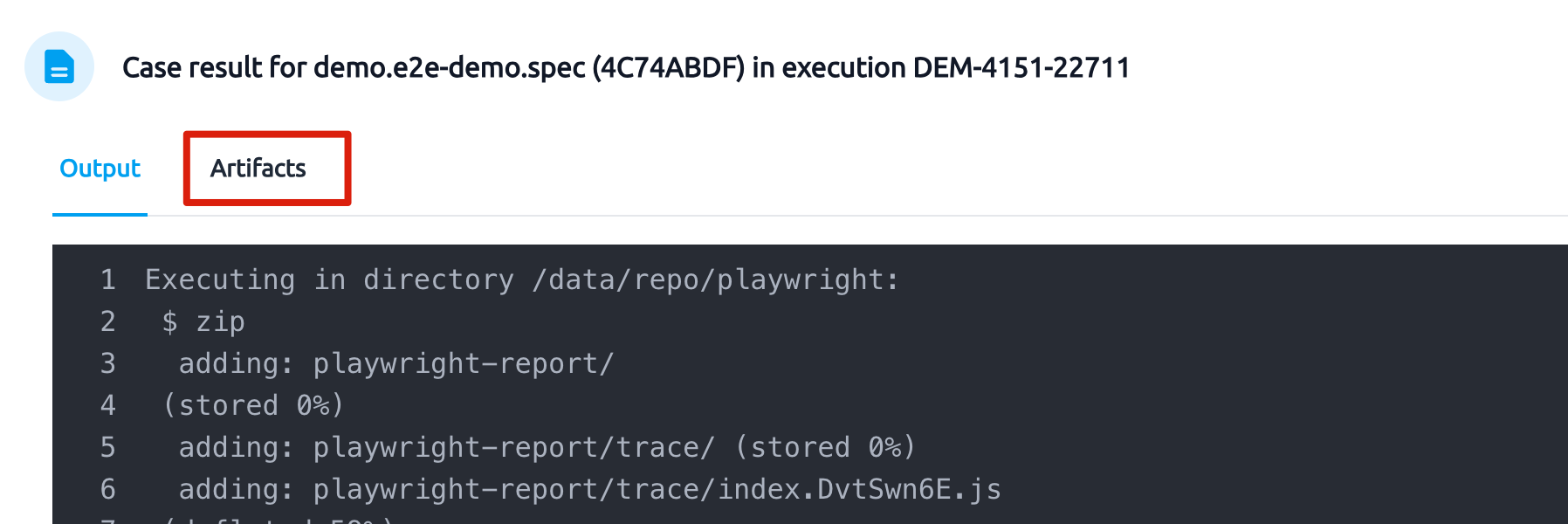
In the execution history, click View log

-
Switch to the Artifacts tab
-
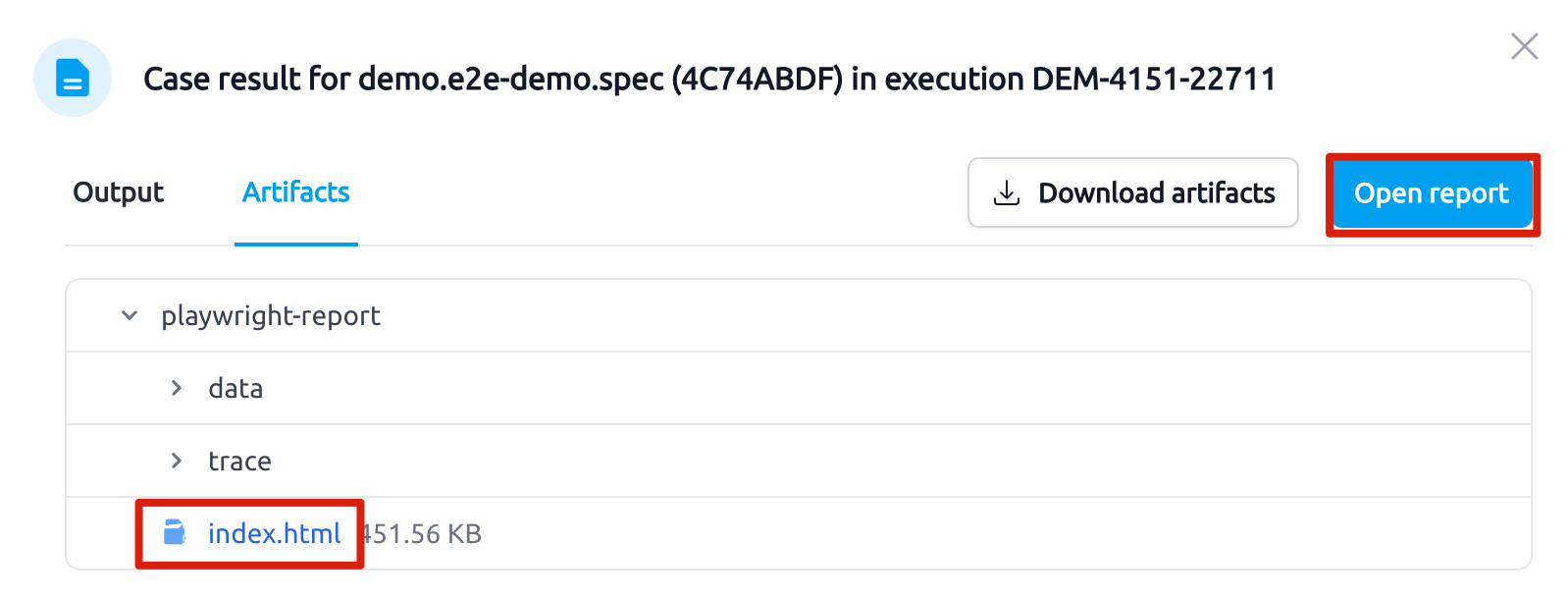
Click Open report or expand playwright-report → index.html
Interpreting the Report
Overview Page
List of the test cases:
- ✅ Green: Passed tests
- ❌ Red: Failed tests
Click a file or test to see details.
Detail Panel
- ❗ Errors: error message, expected vs. actual, code location
- 📝 Test Steps: recorded interactions with timings (green=success, red=failure)
- 🎥 Videos: play the full test recording (if video: 'on' or retain-on-failure)
- 🔁 Traces: download trace.zip to replay in Trace Viewer (npx playwright show-trace trace.zip)
×
Still have questions?
Our team is here to help. Get in touch and we'll get back to you as soon as possible.