
Understanding Workspace Settings
Overview
This document covers actions in Workspace settings that are available to both workspace members and workspace admins.
The Usage tab in Workspace settings is being deprecated. Usage and trend analysis are consolidated into Workspace Dashboard.
Open Workspace Settings
From any workspace page, open the left navigation and go to Workspace Settings.
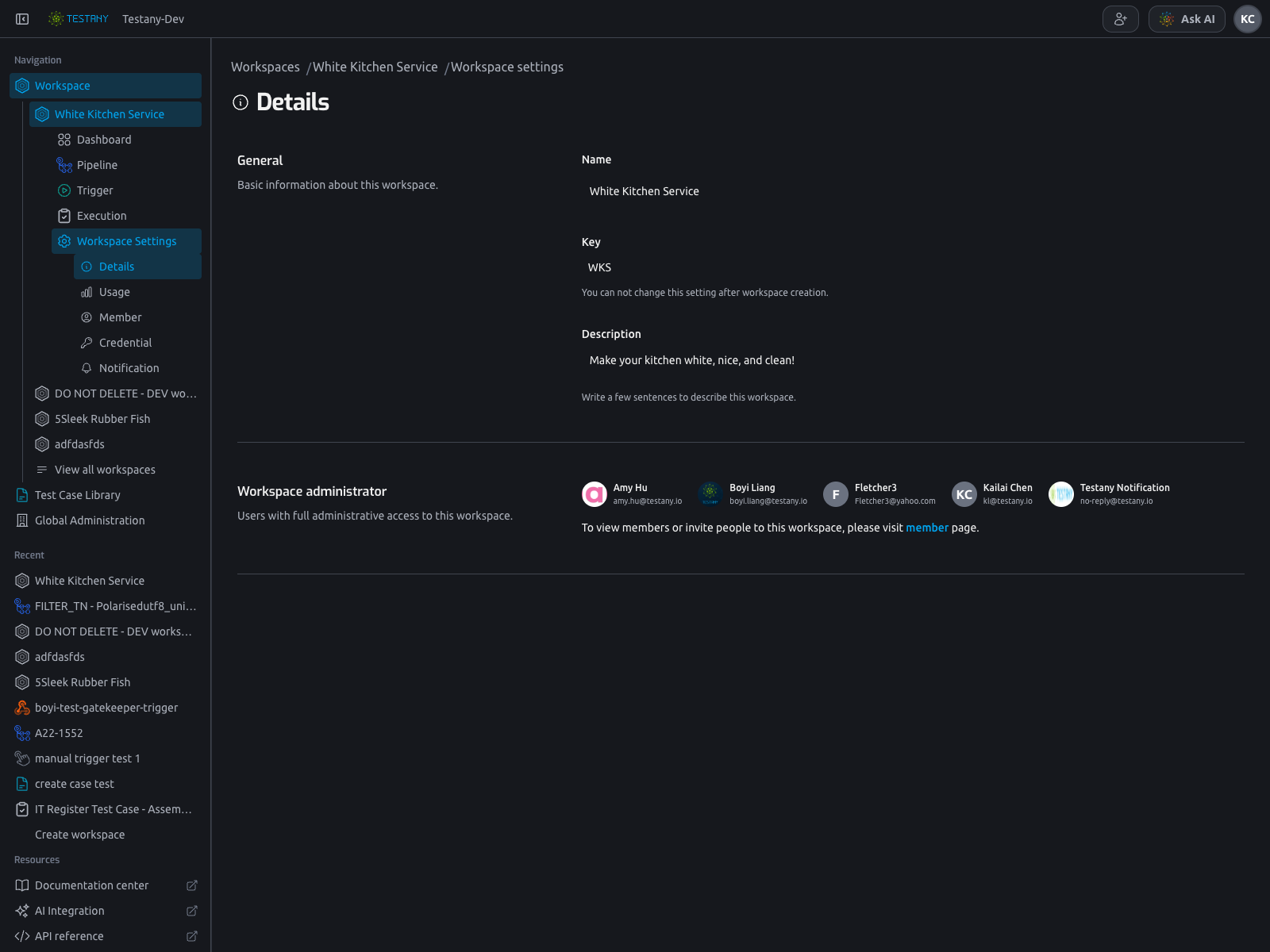
The main tabs in this area are:
DetailsMemberCredentialNotification
Details Page: Review Workspace Basics
In Details, you can review:
- Workspace name
- Workspace key
- Workspace description
- Current workspace administrators
Member Page: Browse, Search, and Invite Members
Go to the Member tab to review current workspace members.
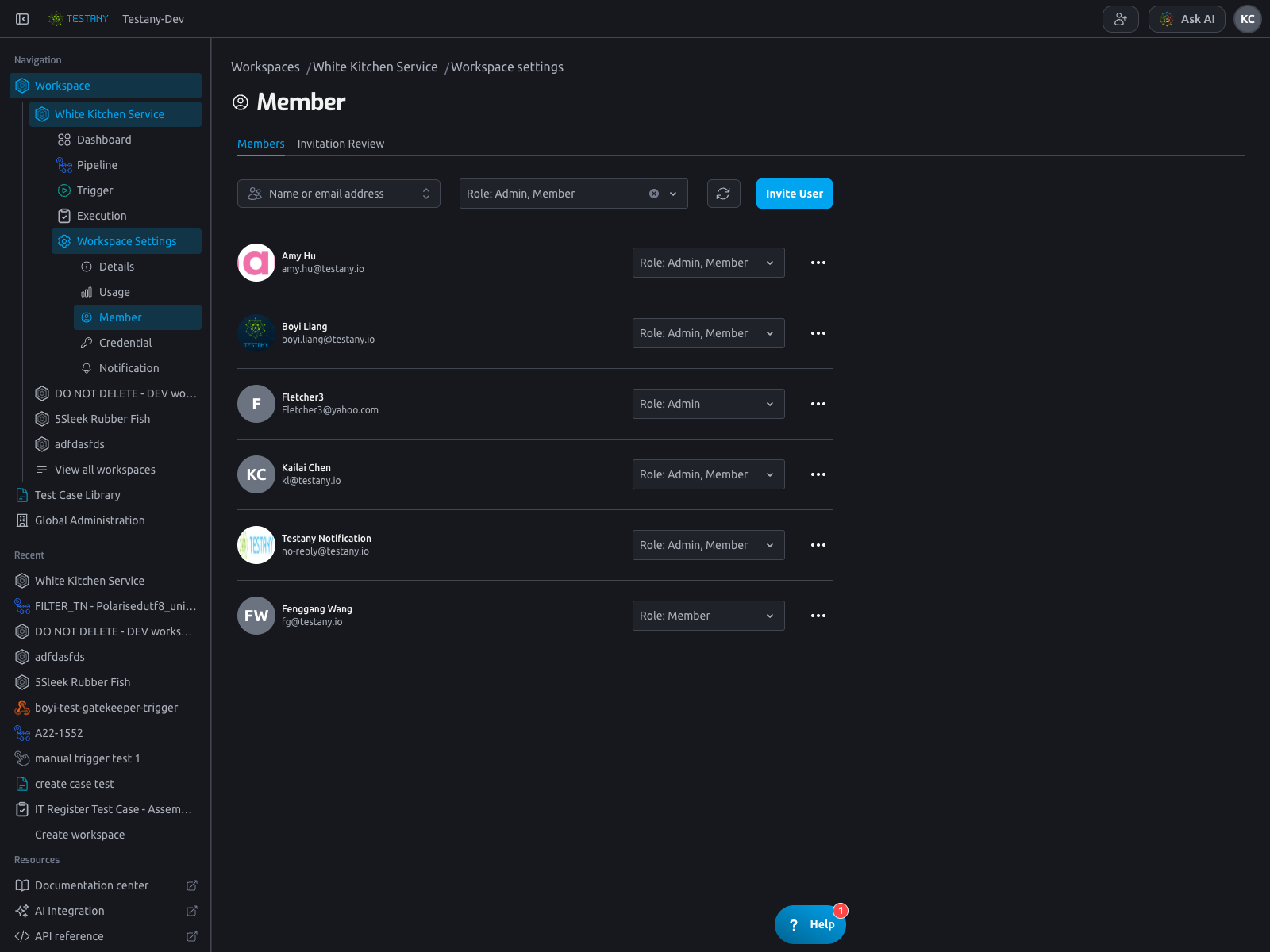
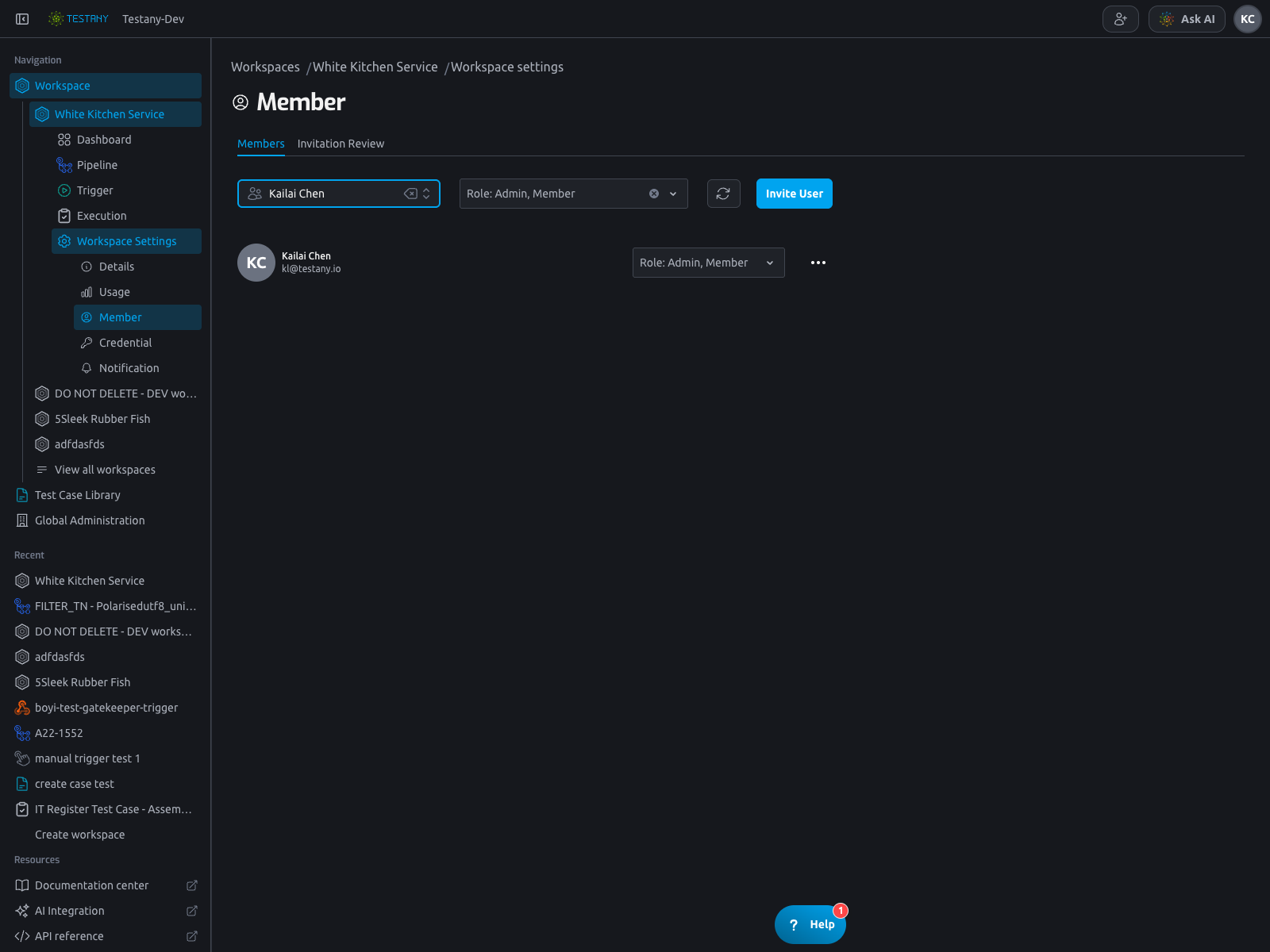
Use the member search box to locate a person by name or email.
Invite Members to the Workspace
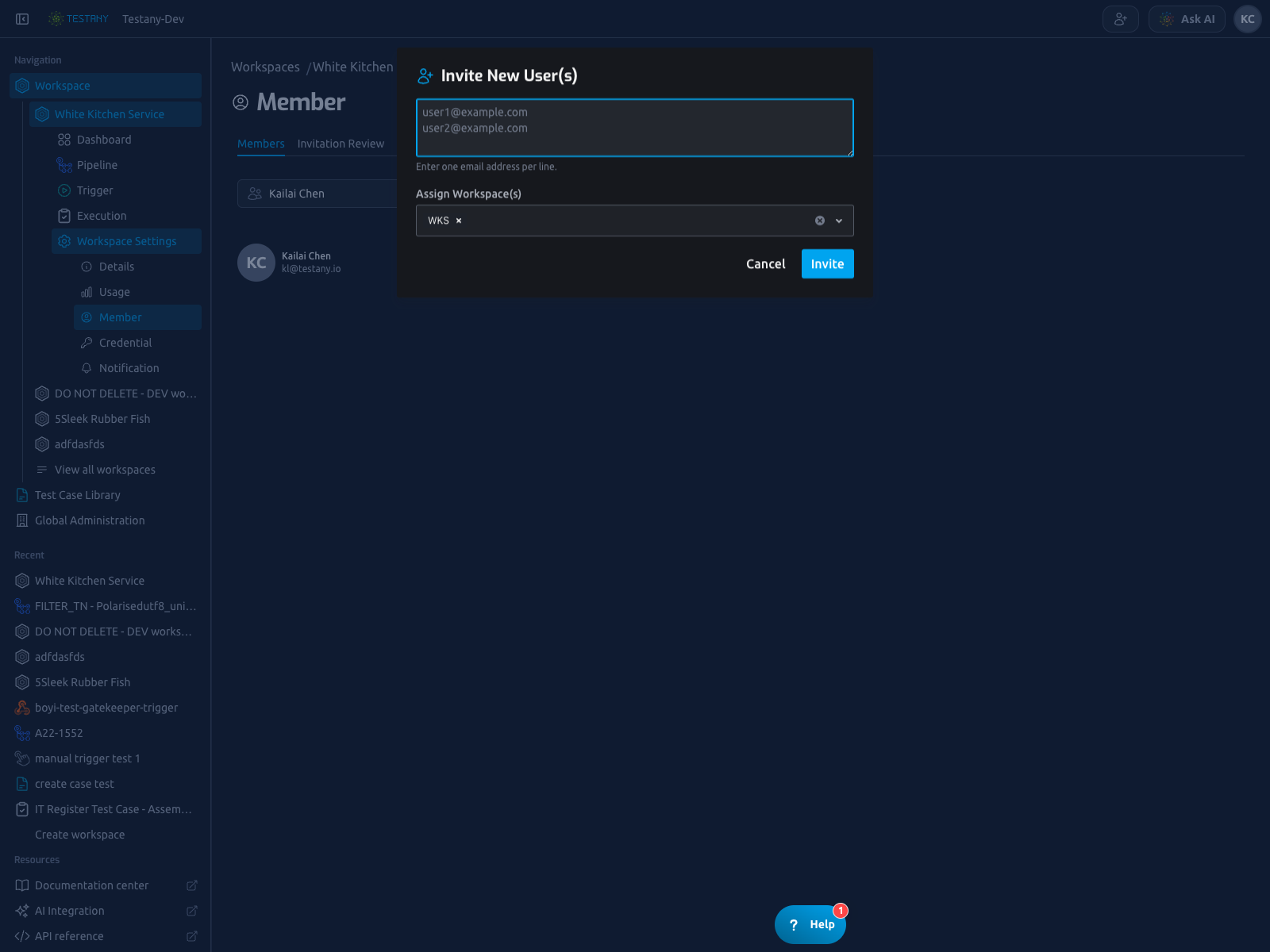
In Member, click Invite User, enter one or more email addresses, and submit.
This invitation entry supports two scenarios:
- Existing Testany user -> join current workspace.
- New email address -> in environments where tenant/global invitation policy allows onboarding invitations, invite and onboard into Testany, then join current workspace.
You can submit multiple email addresses in one operation for batch onboarding/invitation.
After acceptance, invited people appear in the Member list and can be searched by name or email.
Credential Page: Runtime-Scoped Credential Context
Go to Credential to work in the selected runtime context:
- Select a runtime context
- Review credential safes and credential keys for that runtime
- Confirm which credential assets are available to test cases during execution
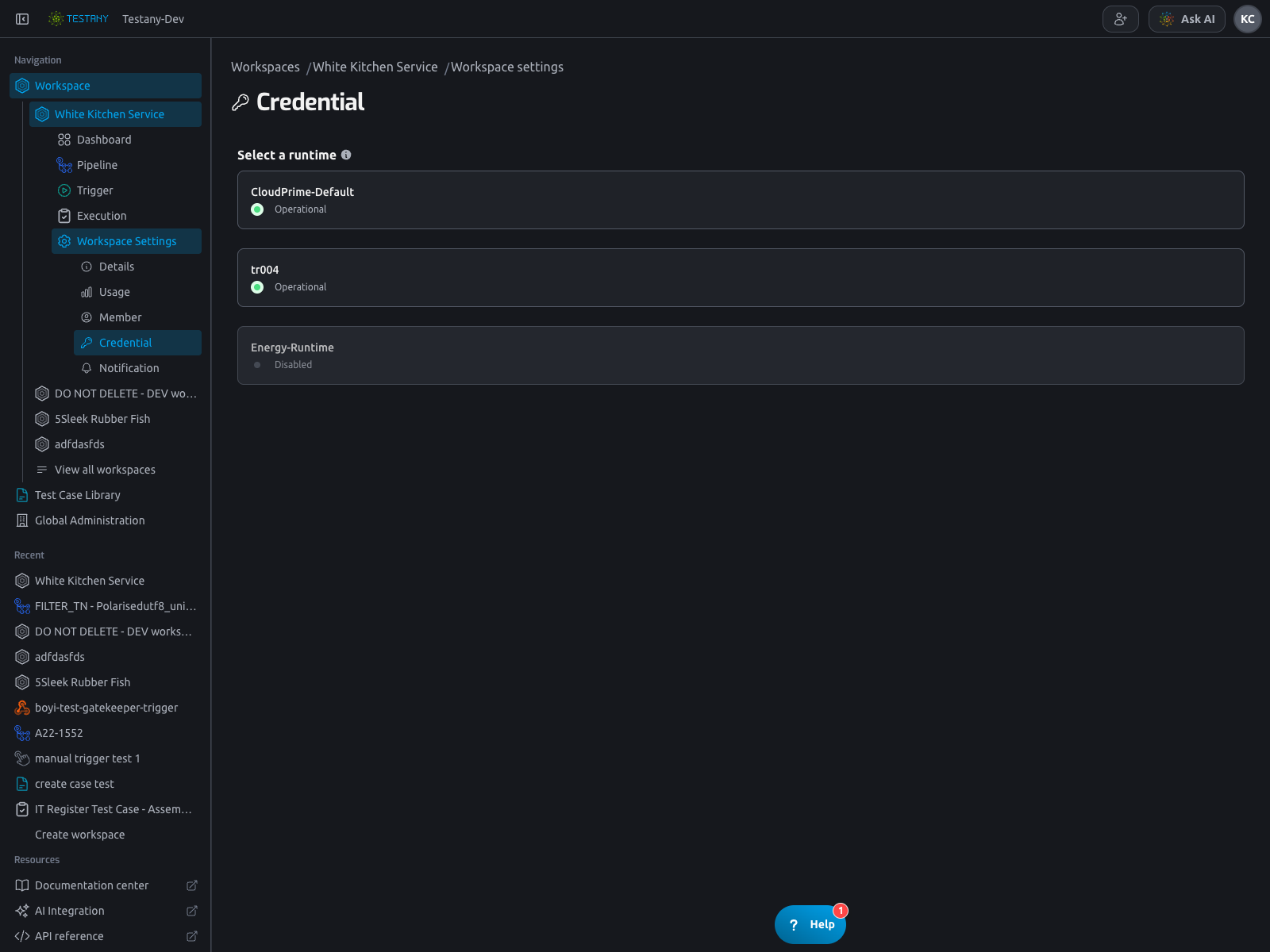
In this page, Credential Safe represents an external secret store (for example, Azure Key Vault or AWS Secrets Manager) integrated via Testany Secrets Service, and each credential key maps to the key name used by your tests.
For end-to-end credential setup and usage, see:
Notification Page: Shared Group Receivers for Result Delivery
In Notification, each row includes:
- Receiver type (integration/channel type)
- Receiver name (can link to the target channel/space)
- Delivery preference (all execution results or failed-only)
- Row actions (for receiver maintenance)
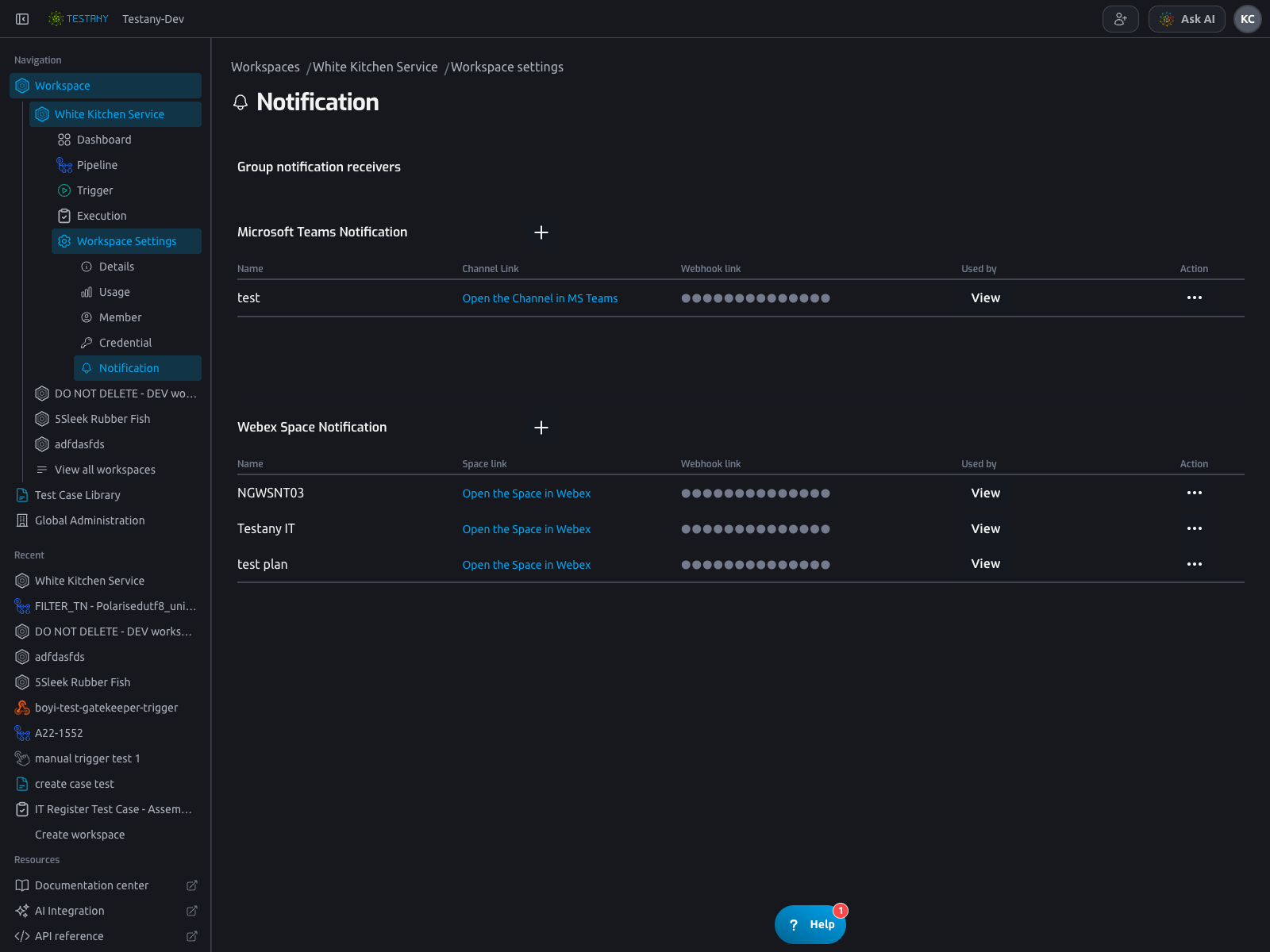
Group receivers configured here are workspace-shared assets, and can be selected later in Result notification for Plan/Gatekeeper.
For complete notification behavior and receiver model, see:
Related Docs
Still have questions?
Our team is here to help. Get in touch and we'll get back to you as soon as possible.